

250
Downloads
19
Reviews
Latest Version
Version

Autoruns Download for Windows PC (Latest Version)
When Windows starts, dozens of programs, services, scheduled tasks, and drivers load automatically in the background. Some are essential for the operating system, while others belong to third-party software. Over time, these startup entries can slow down boot time, consume system resources, or even hide unwanted applications.
Autoruns is one of the most advanced startup management tools available for Windows. Developed by Microsoft Sysinternals, it shows every location where applications and services can launch automatically. Instead of checking multiple Windows settings, you can view everything in one place and disable unnecessary entries with just a few clicks.
What is Autoruns?
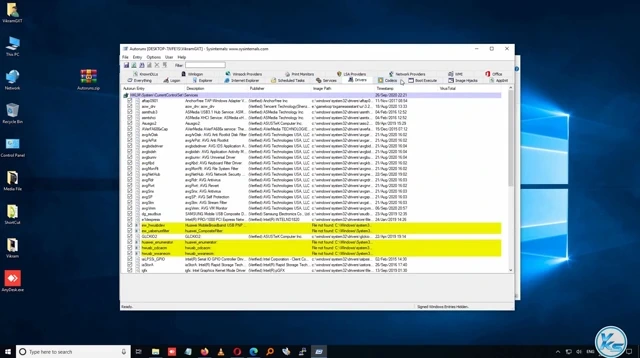
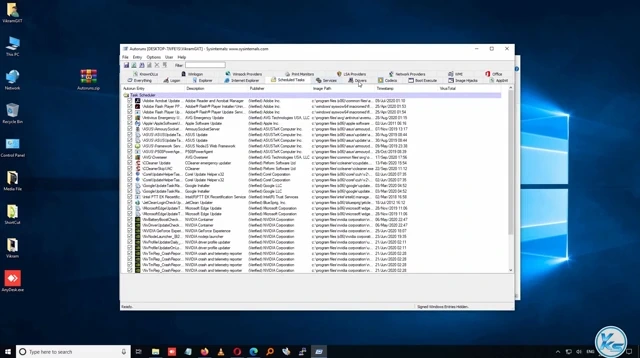
Autoruns is a free Windows utility that scans your system for every auto-start location used by applications, drivers, browser extensions, scheduled tasks, services, codecs, and more. Unlike the built-in Startup Apps page in Windows Settings or Task Manager, Autoruns provides a much deeper look into how Windows starts.
The software is widely used by IT professionals, system administrators, malware analysts, and advanced users because it exposes startup items that most tools cannot detect. It also highlights Microsoft entries separately, making it easier to identify third-party programs that may be slowing down your PC.
Whether you want to troubleshoot slow startup times, remove leftover software entries, or investigate suspicious programs, Autoruns gives you complete visibility over the Windows startup process.
Key Features of Autoruns
View Every Startup Location
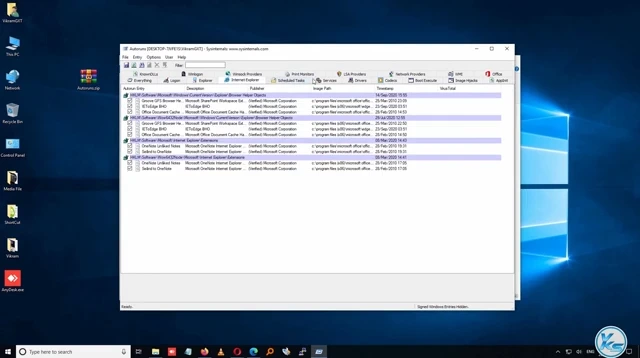
Autoruns scans dozens of Windows auto-start locations, including Registry keys, Startup folders, scheduled tasks, services, drivers, Explorer extensions, browser helper objects, and more. Everything is displayed in one organized interface.
Disable Startup Entries Safely
Instead of deleting startup items immediately, you can simply uncheck them. This makes troubleshooting much safer because disabled entries can easily be restored later if needed.
Detect Hidden Startup Programs
Some applications launch through Registry locations or scheduled tasks that do not appear in Task Manager. Autoruns reveals these hidden entries, helping you find software that starts silently.
Verify Digital Signatures
The tool can verify digital signatures for executable files, making it easier to distinguish trusted software from unknown or potentially suspicious files.
Highlight Non-Microsoft Entries
One of the most useful options is hiding Microsoft entries. This allows you to focus only on third-party software that may be affecting startup performance.
Search Online for Unknown Files
If you find a startup item you do not recognize, Autoruns lets you search online directly from the program. This helps determine whether the file is safe or unnecessary.
Advanced Filtering Options
Large systems may contain hundreds of startup entries. Autoruns includes filters and search tools that help you locate specific programs, services, or drivers quickly.
Portable Application
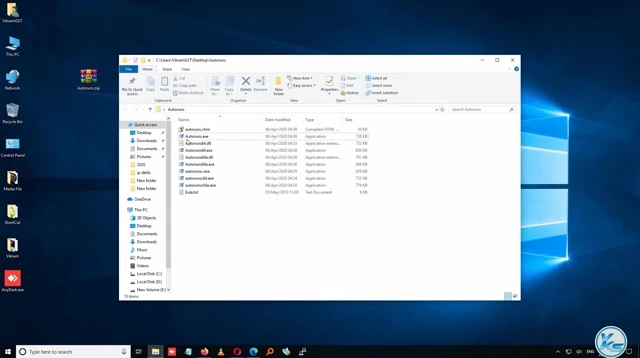
Autoruns does not require installation. You can run it directly from the downloaded files, making it useful for troubleshooting multiple computers. For users who regularly optimize Windows, tools like Custom Resolution Utility (CRU) for display customization and CAM for NZXT for hardware monitoring also complement Autoruns well.
Autoruns Features at a Glance
Feature | Benefit |
|---|---|
Startup Manager | Displays every startup location in Windows |
Registry Scanner | Finds Registry-based startup entries |
Service Viewer | Shows Windows and third-party services |
Driver Inspection | Lists boot and system drivers |
Scheduled Task Viewer | Displays automatically running scheduled tasks |
Digital Signature Check | Helps verify trusted applications |
Hide Microsoft Entries | Makes third-party programs easier to identify |
Portable Utility | No installation required |
System Requirements
Autoruns is a lightweight utility and works on most modern Windows computers.
Component | Requirement |
|---|---|
Operating System | Windows 11, Windows 10, Windows 8.1, Windows 8, Windows 7 |
Processor | Intel or AMD processor |
RAM | 1 GB minimum (2 GB or more recommended) |
Storage | Less than 10 MB of free space |
Administrator Rights | Recommended for full system access |
How to Download and Install Autoruns
Downloading Autoruns from this page is simple. Use the download button provided above to get the latest version for your Windows PC, then follow these steps.
- Click the Download button available on this page.
- Save the ZIP file to your computer.
- Extract the downloaded archive using Windows File Explorer or another extraction tool.
- Open the extracted folder.
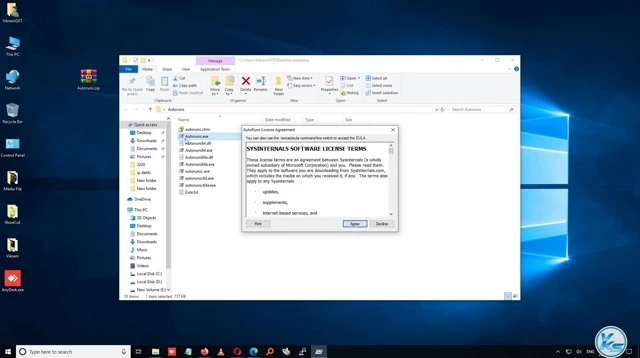
- Run Autoruns.exe or Autoruns64.exe depending on your Windows version.
- Accept the license agreement when prompted.
- Wait a few seconds while the software scans your system.
- Review startup entries and disable only the programs you no longer need.
Pros and Cons
Pros
- Completely free to use
- Developed by Microsoft Sysinternals
- Shows every Windows startup location
- Portable with no installation required
- Helps troubleshoot slow boot problems
- Supports digital signature verification
- Powerful filtering and search features
- Useful for malware investigation
Cons
- Interface may feel overwhelming for new users
- Incorrect changes can disable important software
- No built-in explanations for every startup entry
- Best suited for intermediate and advanced users
Conclusion
Autoruns is one of the most powerful startup management utilities available for Windows. It provides a complete view of everything that launches automatically when your computer starts, making it an excellent tool for troubleshooting slow boot times, identifying unnecessary startup items, and investigating suspicious software.
If you need more control than the standard Windows startup settings provide, Autoruns is an excellent choice. Download the latest version using the button on this page and gain complete visibility into your system’s startup process.
System Tools:
Autoruns
Startup entry scanner
RAMMap
Memory Analysis
ParkControl
CPU Parking
Process Lasso
CPU Optimization
Wise Memory
RAM Optimizer
See More
Gaming & Media:
Razer Cortex
Game Booster
EasyBCD
Boot Management
HidHide
Controller Hiding
XOutput
Controller Emulator
DS4Windows
PlayStation Controller
See More
Internet & Network:
Neat Download Manager
Download Accelerator
Proton VPN
Secure Browsing
Psiphon VPN for PC
Secure Browsing
Iriun Webcam
Turn phone into webcam
Messenger for PC
Text messaging
See More
Productivity & Recovery:
AOMEI Backupper
Backup & Recovery
PowerToys
Productivity Tool
Cura Software
3D printer slicing software
Power BI Desktop
Data visualization
4Download Fl Studio
Music production software
See More