

10.9k
Downloads
3.1k
Reviews
18.1.3.9
Version

Display Driver Uninstaller (DDU) – Safe GPU Cleanup Tool You Can Trust
Having a messy or broken graphics driver can slow down your PC or cause it to crash during gaming or video work. That’s where Display Driver Uninstaller is here to help you. It is a free tool that completely removes your graphics drivers and any hidden files they leave behind.
No matter if you use NVIDIA, AMD, or Intel graphics, DDU can help you remove the driver completely, which regular Windows tools often fail to do. It is especially helpful when you are changing your graphics card or fixing a driver problem.
In this article, we will help you on how to download Display Driver Uninstaller. Here we also discuss in detail how to use it and expert-backed tips for the best results. We also add answers to common FAQs to help you stay confident while using DDU.
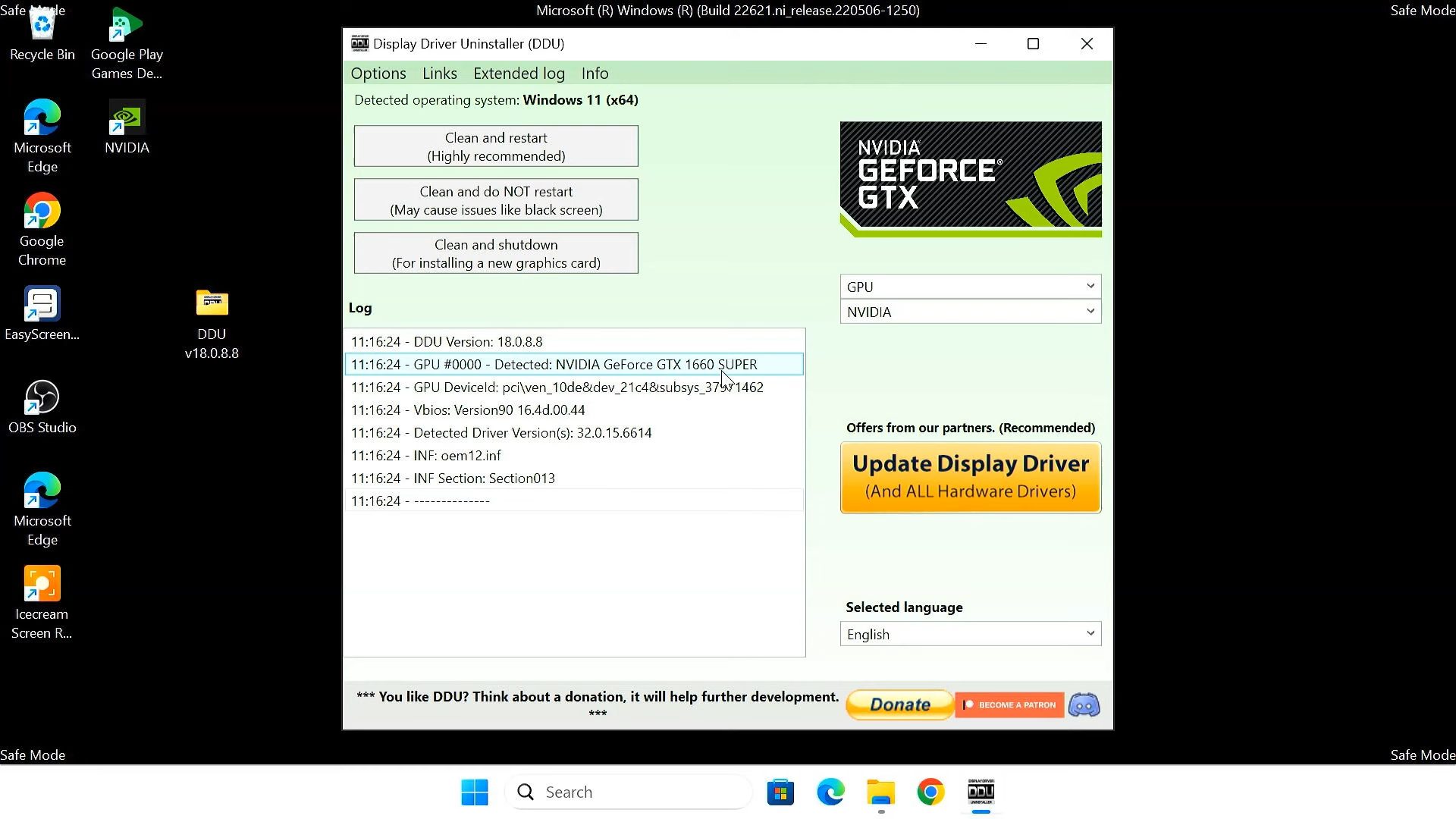
What Is Display Driver Uninstaller (DDU)?
Display Driver Uninstaller is a smooth, independent tool developed by WagnardSoft. Its main work is to totally remove GPU drivers and all related files, registers, and hidden data that normal uninstalls often leave behind. It is the best feature that makes it an amazing tool for someone having a new graphics card, changing drivers, or having screen issues because of leftover files from old drivers.
This software supports various types of hardware, including NVIDIA, AMD, and Intel graphics drivers. It also extends the cleanup of Realtek audio drivers, which provides users a quick solution to prepare their system for a fresh driver install.
Key Benefits of Using DDU
DDU has more functions than a cleanup tool. It is best for anyone serious about maintaining system stability and performance during GPU changes or driver issues. Whether you are upgrading your graphics card or resolving frequent crashes, it can clear out every trace of old drivers so new installations work smoothly.
- Complete Driver Cleanup: Removes driver files, folders, registry entries, and hidden parts that normal uninstallers often leave behind.
- Prevents Driver Conflicts: Prevents issues when changing between NVIDIA, AMD, or Intel GPUs by fully removing leftover software.
- Improves System Performance: Removing leftover drivers clears out extra junk, helping your computer start faster and have fewer errors.
- Fixes Update Errors: Helps users fix failed installations or crashes caused by broken or corrupted driver fragments.
- Better Stability During GPU Tweaks: Helps keep your system stable while overclocking, testing performance, or making speed adjustments.
- Essential for GPU Upgrades: Makes it easy to upgrade or replace your graphics card, especially when switching between different brands.
- Cleans Audio Drivers Too: It also helps clean up Realtek audio drivers, so it’s useful for more than just graphics card problems.
How to Download DDU (Display Driver Uninstaller)?
The first step to safely removing your GPU drivers is downloading Display Driver Uninstaller from a trusted source. Since DDU works with important system files, it is best to stay away from unofficial or unsafe websites that might include viruses or old versions. Since the download button is already available at the beginning of this article, you can easily get the latest DDU version directly from our site — pcsoftwarefiles — without needing to visit external sources. They keep the tool updated and free to use.
When you download DDU, you’ll usually see two types of files. Each one is meant for a different use, depending on what you need:
- Portable / Self-Extracting Version: This is a zip file that does not need installation. Just extract the contents and run the .exe file. It is lightweight, leaves no trace on your system, and is best for using DDU temporarily or on multiple PCs through a USB drive.
- Installer Version: This version works like a regular program. It lets you install files into folders and also add a shortcut to your Start Menu. It is a good option if you plan to use DDU and get access without having to unzip it eachtime.
- Safe Mode Compatibility: No matter which version you choose, DDU works best when run in Safe Mode. This ensures no GPU drivers are active during uninstallation, leading to a smoother and cleaner removal.
Step-by-Step Guide to Using DDU
Running Display Driver Uninstaller the right way helps you clean out old drivers and avoid problems. If you’re upgrading your graphics card or fixing crashes, following the right steps helps your computer run better.
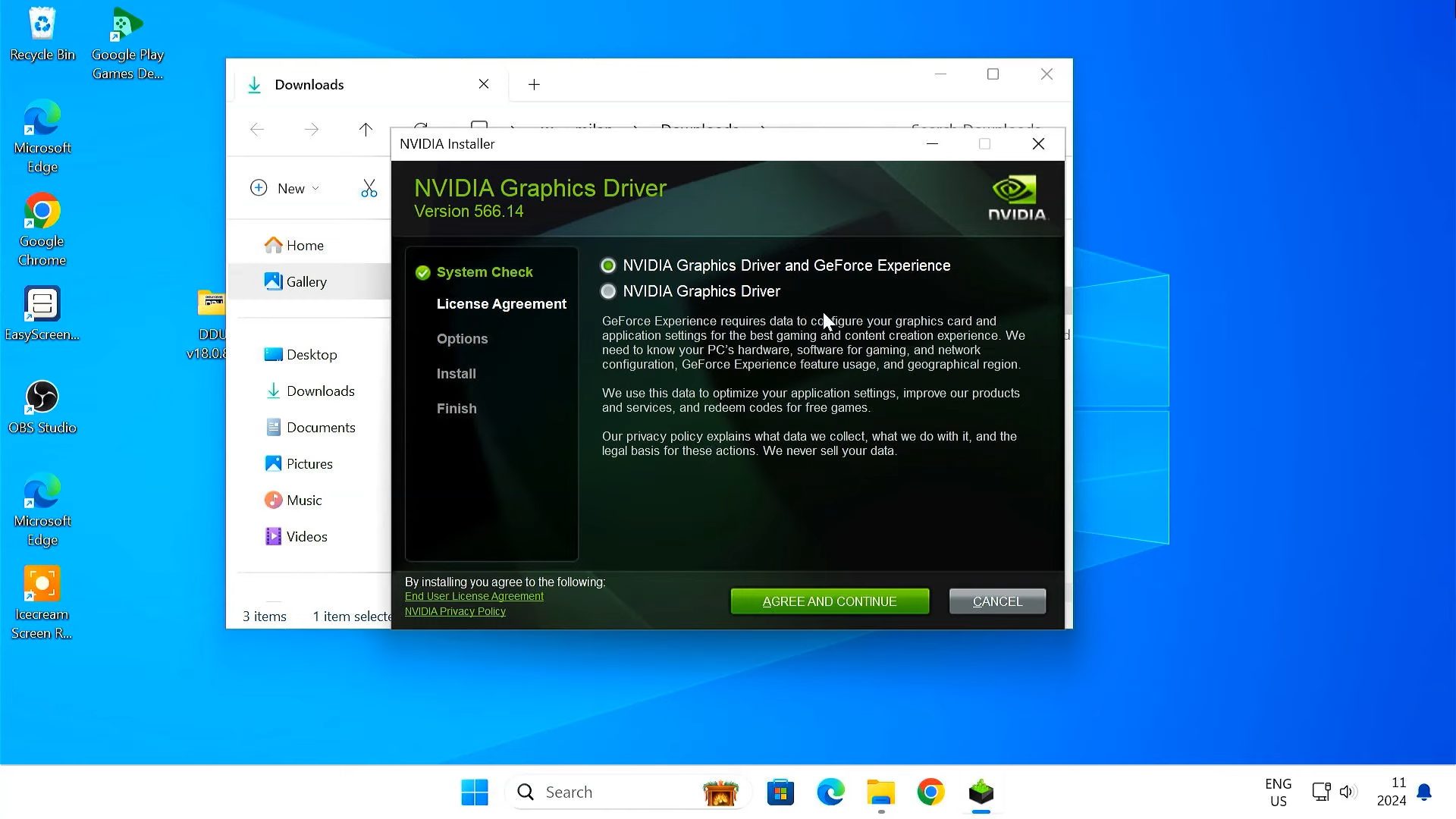
- Download Latest Driver First: Go to your graphics card maker’s website and download the latest driver. Don’t install it yet; just keep it ready for after you clean up.
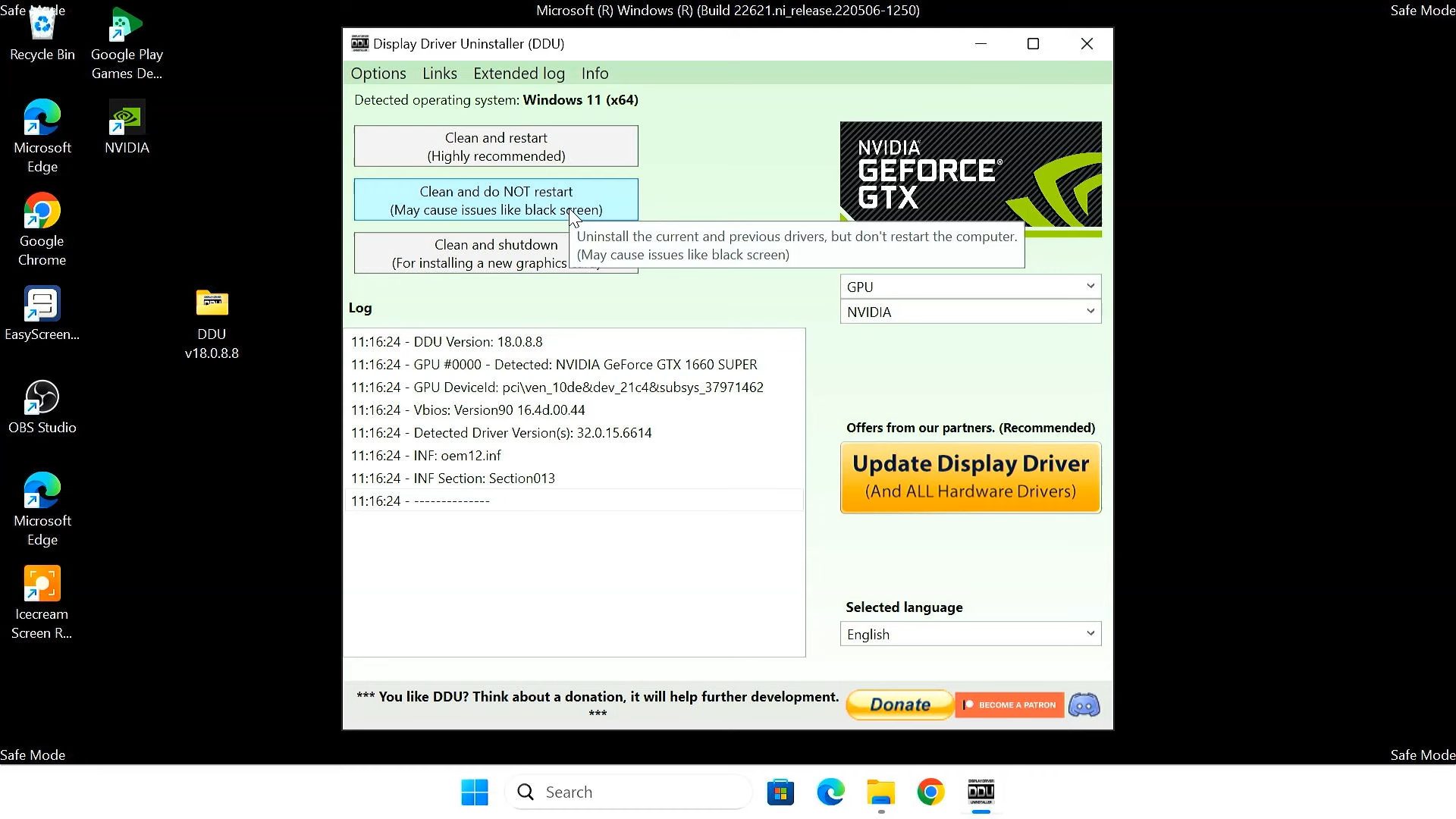
- Run DDU in Safe Mode: Starting DDU in Safe Mode helps disable GPU-related services, allowing a more thorough cleanup.
- Choose GPU Brand and Cleanup Option: Select your GPU type, then pick one option. Clean and restart, clean and Shutdown, or Clean without Restart.
- Start the Cleanup Process: Let DDU delete all old driver files, hidden parts, and registry entries so your system is ready for a clean install.
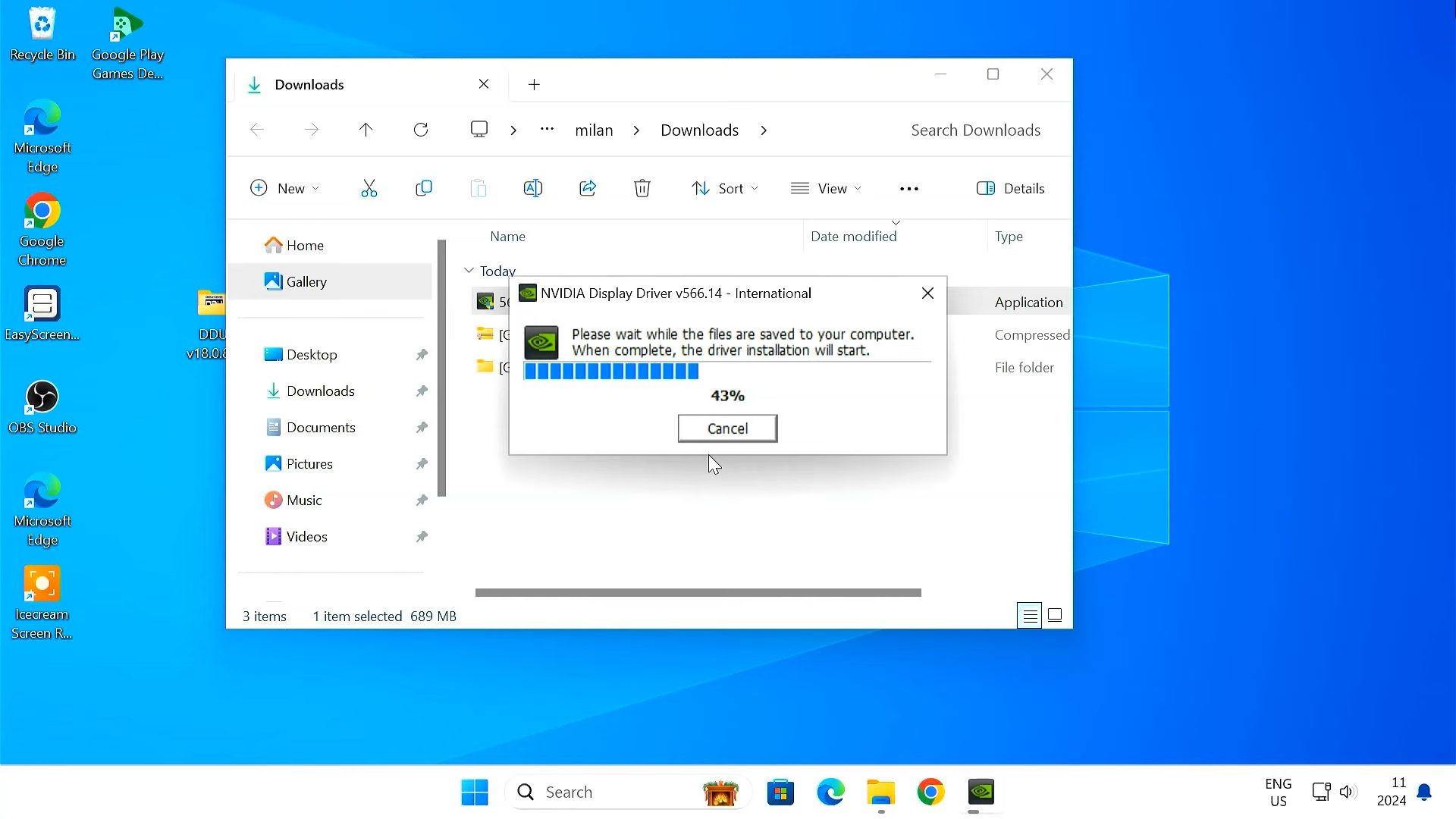
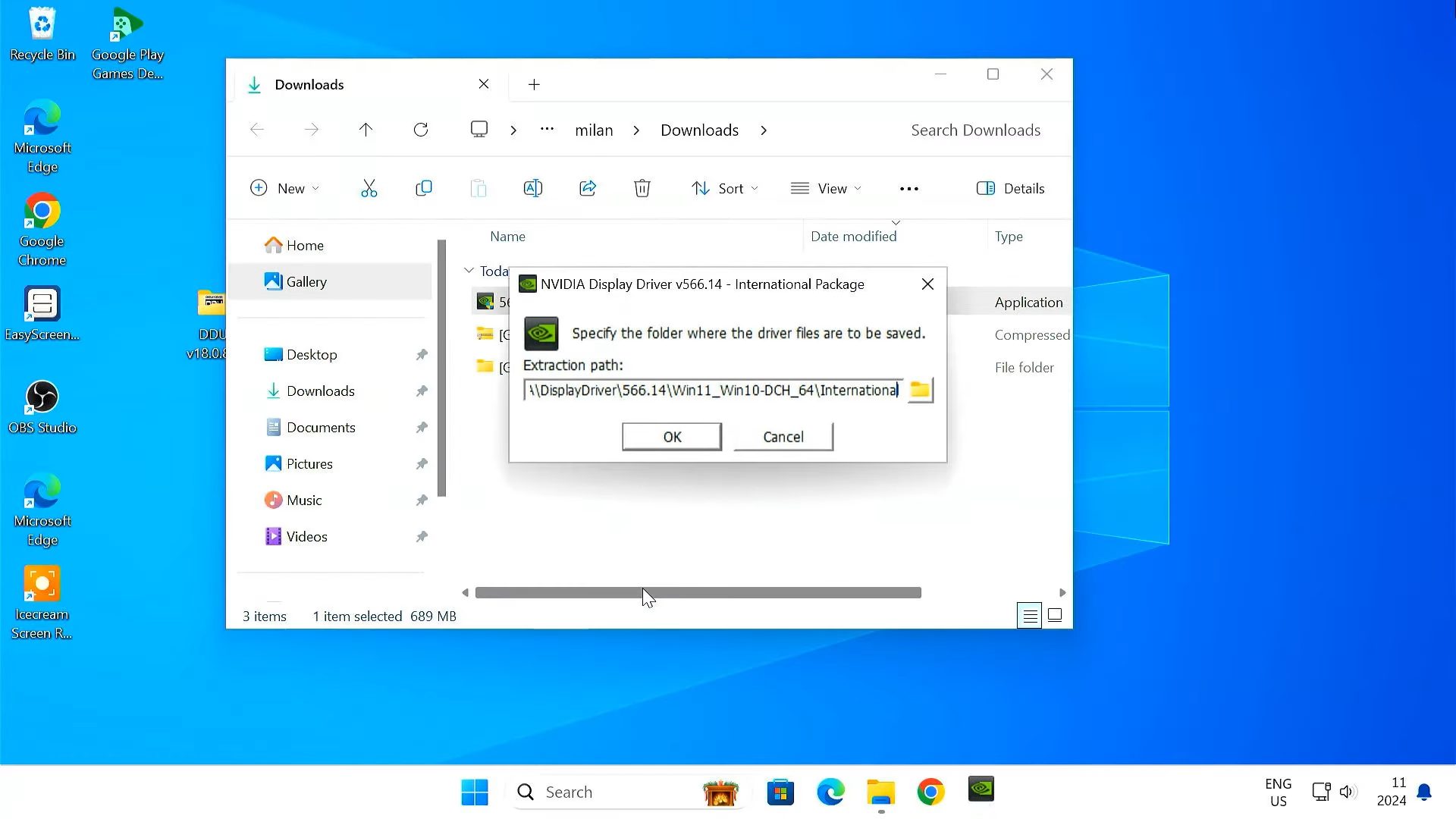
- Reboot and Install New Driver: After rebooting, manually install the new driver to avoid the Windows auto-installer from interfering.
- Reconnect to the Internet (Optional): If you disabled the Internet to prevent auto-driver downloads, reconnect after completing manual installation.
Recommended Usage Best Practices
Display Driver Uninstaller (DDU) is not something you need to use every time you update your graphics driver. It is made for special cases like changing GPU brands, fixing installation problems. If used the right way, it makes sure old drivers don’t mess up new installs.
Here are some essential tips to follow:
- Only use DDU when changing GPU brands (e.g., AMD to NVIDIA).
- Always boot into Safe Mode for the most effective cleanup.
- Download your new GPU driver beforehand but install it after using DDU.
- Temporarily disconnect from the internet to prevent auto-installs.
- Disable Windows Update temporarily during the process.
- Create a system restore point before running DDU to stay safe.
Related Tools
If you’re fixing GPU or display issues with DDU, these tools may also help:
- Custom Resolution Utility (CRU) – Edit and create custom display resolutions.
- All in One Runtimes – Install essential Windows runtime libraries for smoother performance.
Final verdict
Display Driver Uninstaller is a strong and amazing tool that helps users deal with GPU driver issues, upgrades, or brand switches. It gives you a fresh start by removing extra files that normal uninstallers leave behind. To keep your system running well and avoid errors, DDU is a helpful tool to have.
System Tools:
SuperF4
Process Termination Tool
ExplorerPatcher
Windows Customization Tool
WinUtil
Windows Tweaking Tool
Quick CPU
CPU Optimization Tool
Winaero Tweaker
Windows Tweaking Tool
See More
Gaming & Media:
EasyBCD
Boot Management
HidHide
Controller Hiding
XOutput
Controller Emulator
DS4Windows
PlayStation Controller
Mod Organizer 2
Game Modding Tool
See More
Internet & Network:
Neat Download Manager
Download Accelerator
Proton VPN
Secure Browsing
Psiphon VPN for PC
Secure Browsing
Iriun Webcam
Turn phone into webcam
Messenger for PC
Text messaging
See More
Productivity & Recovery:
AOMEI Backupper
Backup & Recovery
PowerToys
Productivity Tool
Cura Software
3D printer slicing software
Power BI Desktop
Data visualization
4Download Fl Studio
Music production software
See More